Print labels from Excel, CSV and ODS
Prepare your data in a spreadsheet, import it into Label Designer and get labels ready to print. Each row of the table becomes a label, with the number of copies you choose.
From spreadsheet to labels in four steps
- Prepare the spreadsheet. Open Excel, LibreOffice Calc or a compatible program. Put the column headers in the first row and reserve the first column for the number of copies.
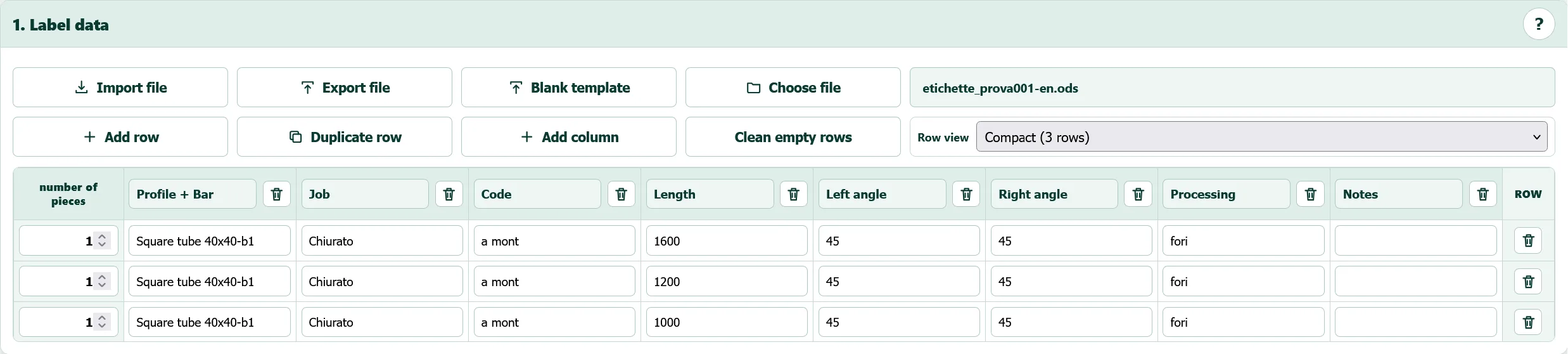
- Import the file. In «1. Label data» choose your file and click Import. The supported formats are .xlsx, .ods and .csv.
- Check the result. Review the headers, quantities and total label count, then inspect the preview.
- Print. Set up the label stock, check the print preview and print or export a PDF.
To start with the right headers use the Blank template command: it gives you a file ready for the selected template, which you fill in and import.
What you can do with your data
- Different quantities for each item. The number in the first column sets how many labels each row produces.
- Edit the table without leaving the program. Correct values directly in Label Designer, or fill in everything from scratch without using Excel.
- Export the table. Keep the data of a job in a file and reuse it when you need it.
- Start from a template. Seven built-in templates are included: CutMag, Product, Warehouse, Price, Shipping, Codes and Base template. You can customize and save them.
Watch out for leading zeros and currencies
Before importing, check codes that start with zero, prices and currency symbols: a spreadsheet can easily turn them into plain numbers.
Frequently asked questions
Which file formats can I import?
Label Designer imports .xlsx, .ods and .csv files. The first row holds the headers and the first column the number of pieces.
Do I need Excel to use Label Designer?
No. You can use LibreOffice Calc or another compatible spreadsheet, or enter the data directly in the program’s table.
How do I print several copies of the same label?
Write the number of copies in the first column of the matching row. The total number of labels is shown after the import.
Do I lose my data if I change template?
If the number of columns matches, your data stays. If it differs, the program offers to prepare a new table, adapt your data or cancel.
Try it with your own data
Label Designer comes with a full 30-day free trial. Import your file and check the preview straight away.