Labels with barcodes and QR Codes
Add a barcode or QR Code to your label layout, pick the right format and check the preview before printing.
Supported formats
Label Designer generates these codes directly on the label:
- Code 128, variable length
- EAN-13 (13 digits) and EAN-8 (8 digits)
- UPC-A
- ITF-14
- Code 39
- QR Code, a two-dimensional matrix code
Some formats need a fixed number of digits, others allow different lengths or character sets. For EAN-13 and EAN-8 the count includes the check digit.
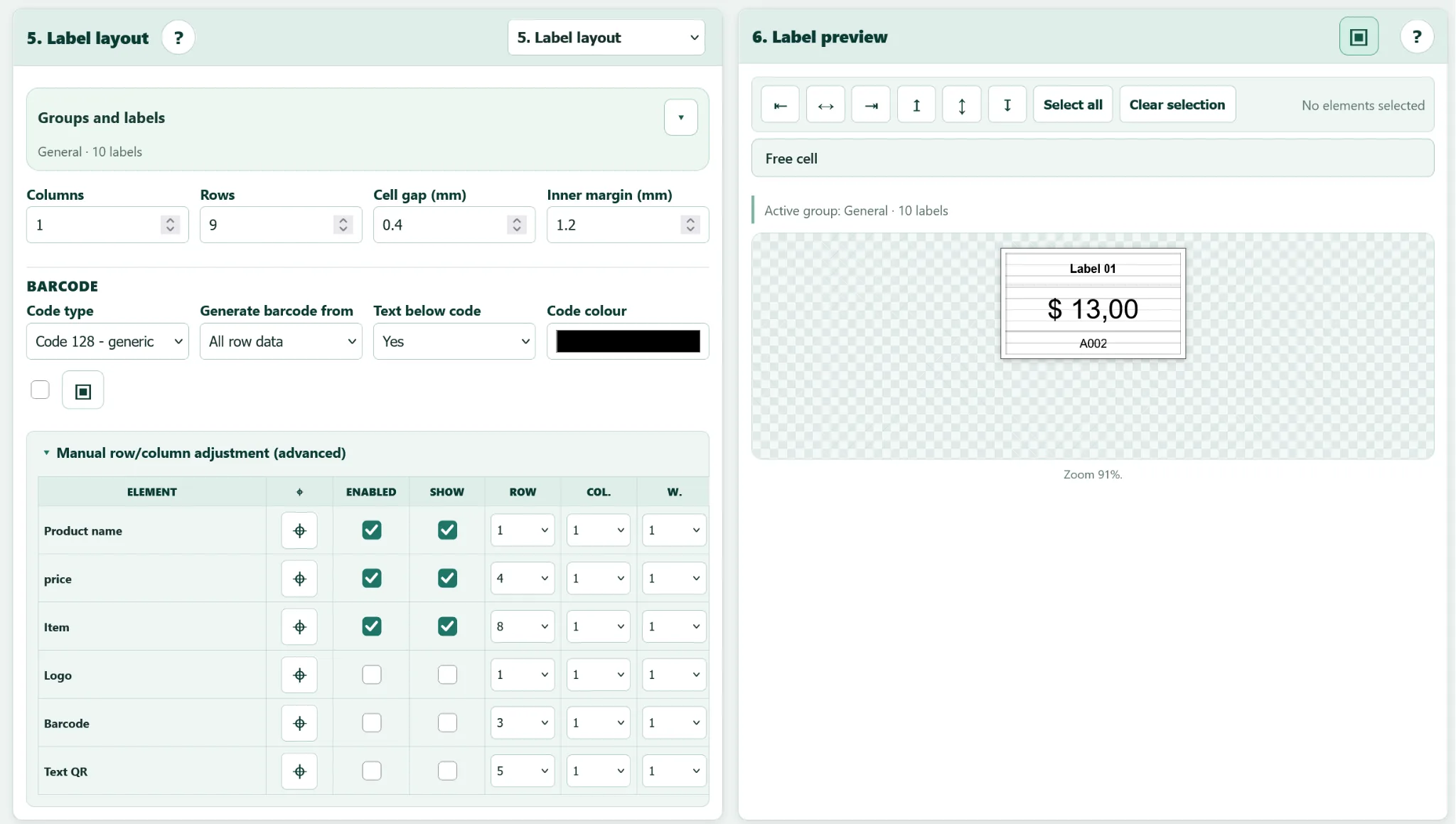
How to add them to your label
- In «5. Layout» enable the code and choose between barcode and QR Code.
- Check the encoded value, the data the code actually represents, and the graphic settings.
- Make sure the code does not overlap other elements.
- Look at the preview and, before printing the whole job, run a test.
Checks before printing
Verify contrast, size, and the absence of cut-offs and overlaps, then try scanning the barcodes and QR Codes with the reader you will really use.
Frequently asked questions
Which barcode types can I use?
Code 128, EAN-13, EAN-8, UPC-A, ITF-14 and Code 39, plus QR Code.
How many digits does an EAN-13 need?
13 digits, including the check digit. EAN-8 needs 8. Code 128 accepts data of variable length.
My barcode does not show the value I wanted. What should I check?
Check the encoded value, the selected format and the number of digits that format requires. The manual includes a troubleshooting procedure.
How do I make sure the code can be scanned?
Check contrast and size, avoid cut-offs and overlaps, and test scanning with your own reader before you print the whole job.
Try it with your own data
Label Designer comes with a full 30-day free trial. Import your file and check the preview straight away.