Print labels on A4 sheets and rolls
Define the real size of the label and of the stock, review the preview of the whole job and print with a properly aligned result.
Printing on sheets
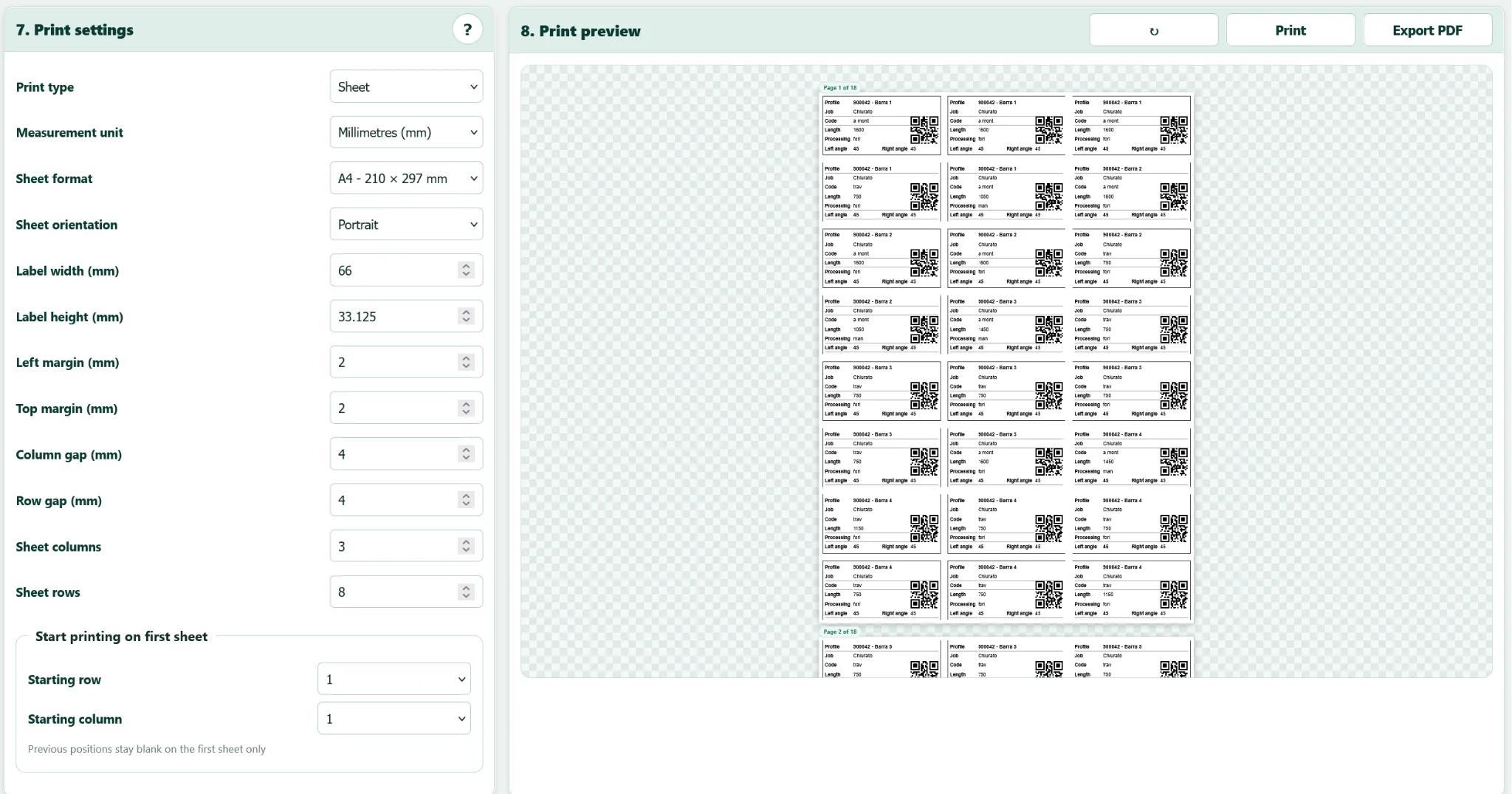
In the «8. Print» section choose sheet mode and the format, for example A4. Then set:
- the width and height of each label;
- the number of columns and rows on the sheet;
- the margins and the spacing between labels.
A sheet with 3 columns × 8 rows holds 24 labels. Even with the same label count, margins can differ from one product to another, so always compare the settings with your actual sheet.
If the sheet has already been partly used, set the starting position and check in the preview that the earlier positions stay empty.
Printing on rolls
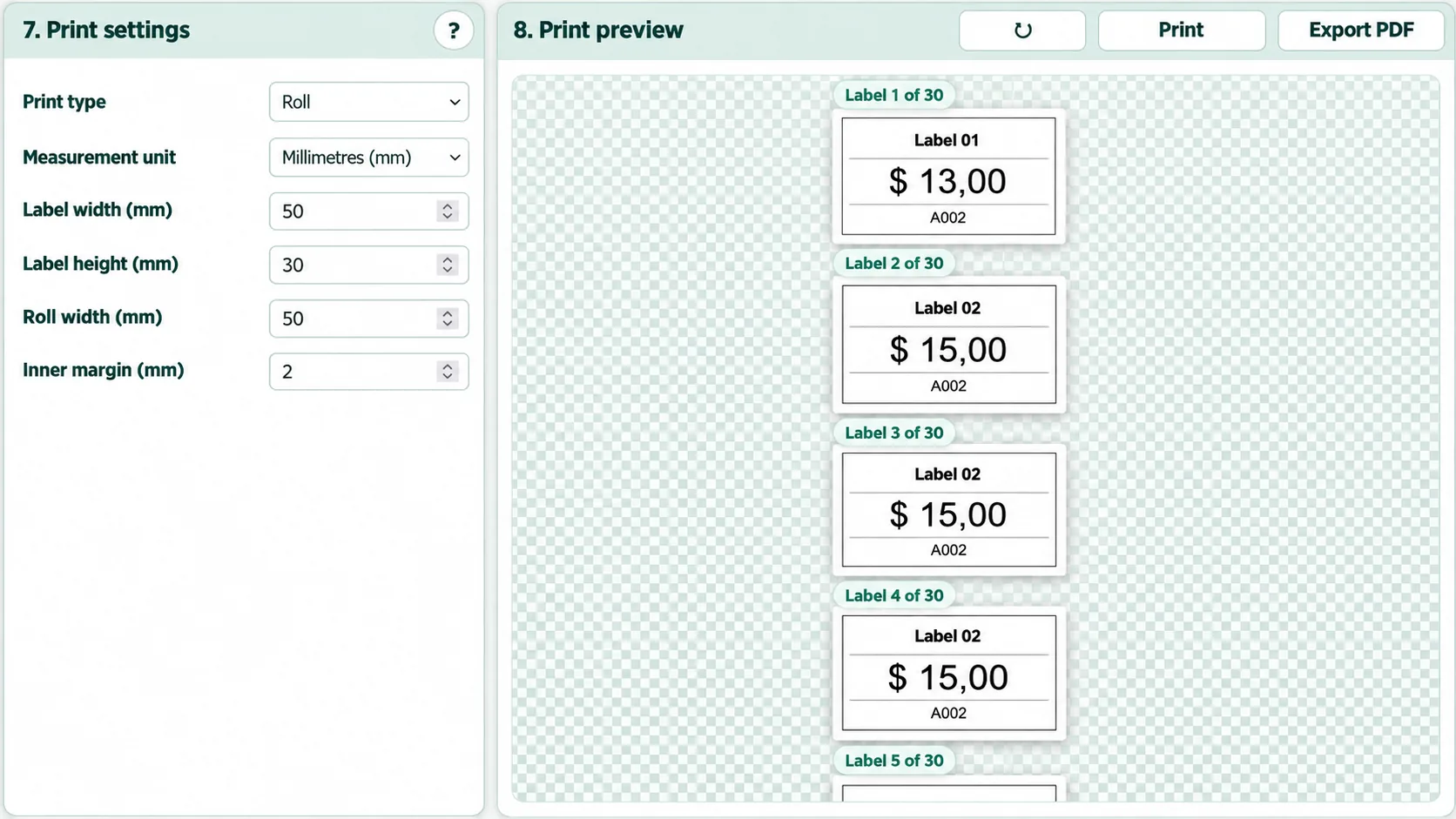
Select roll mode, enter the dimensions of the stock and check that they match the installed roll. Print a test label before you continue. On die-cut rolls the gap between labels is normally detected by the printer’s sensor; if necessary, calibrate the media following the manufacturer’s instructions.
Preview, printing and PDF
The print preview shows the whole job on the sheet or roll, with the total number of labels and pages. Check groups, data, images and code readability, then print or use Export PDF.
Before you print
- For sheets, choose single-sided printing: some printers keep duplex mode on by default.
- Check the format and scale in the print dialog and avoid automatic fit-to-page adjustments.
- Run a test on plain paper and hold it over the label sheet.
- With borderless printing some drivers slightly enlarge the content: verify the alignment before the full run.
Frequently asked questions
Can I print on a sheet that has already been partly used?
Yes. Set the starting position on the first sheet and check in the preview that the used positions stay empty.
How do I avoid misaligned labels?
Compare the settings with the real stock, check scale and format in the print dialog, and test on plain paper held over the label sheet.
Can I print on label rolls?
Yes, there is a roll mode. Enter the stock dimensions, check the preview and print a test label.
Can I save the print job as a PDF?
Yes. After checking the preview you can use Export PDF, then verify scale and format when you print it.
Try it with your own data
Label Designer comes with a full 30-day free trial. Import your file and check the preview straight away.